
Meet Unlayer AI Assistant: Create and Edit Designs With a Prompt

Meet Unlayer AI Assistant: Create and Edit Designs With a Prompt

Unlayer AI Assistant is a white-label, chat-based assistant built directly into the Unlayer builder. It lets users generate complete designs, edit selected elements, translate content, and create images while keeping every result fully editable.
Key takeaways
Create and edit the actual design: AI Assistant applies changes directly to the canvas instead of returning disconnected suggestions.
Work at any level: Users can generate a complete design or focus on a selected row, text block, image, or compatible custom tool.
Keep users in control: Every result remains editable, undoable, and open to further refinement through follow-up prompts.
Embed AI natively: The experience can appear as a white-label feature inside your product.
Avoid building the AI infrastructure yourself: Unlayer manages model routing, design operations, and editor integration.
In this article, we will explore how Unlayer AI Assistant works, what users can create with it, how it differs from a standard AI writing tool, and how SaaS platforms can bring AI-powered content creation into their own products.
See Unlayer AI Assistant in Action
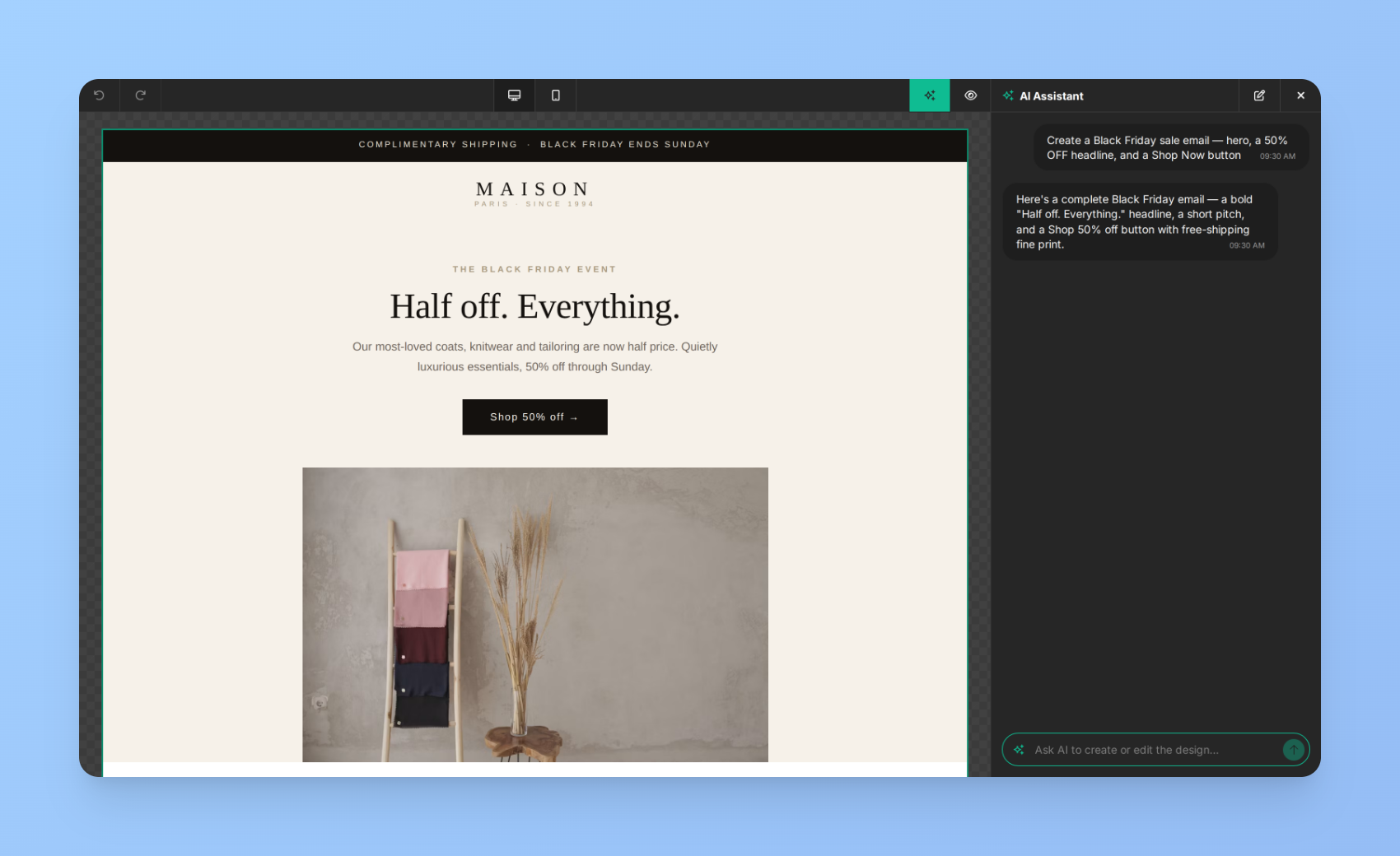
In this example, the user provides a campaign brief and brand context. AI Assistant turns that information into a complete, on-brand email with copy, layout, visuals, and calls to action already in place.
The result is ready to review and refine inside the builder. The user can manually edit any element or continue the conversation with a follow-up request.
What Is an AI Email Assistant?
An AI email assistant helps users create, edit, and improve email content through natural-language instructions.
Many AI tools focus primarily on generating text. They can suggest a headline, rewrite a paragraph, or produce a call to action, but users still need to move that output into an email builder and manually fit it into the design.
Unlayer AI Assistant connects the conversation directly to the canvas. A request such as “make this section more concise” updates the selected section. A request such as “create a summer-sale email for our new running shoes” can generate a complete, editable design with copy, structure, and visuals.
AI writing tool compared with Unlayer AI Assistant
Capability | Standard AI writing tool | Unlayer AI Assistant |
Generate copy | Yes | Yes |
Create a complete design | Usually no | Yes |
Edit the live canvas | No | Yes |
Limit a request to a selected element | Limited | Yes |
Modify rows and layout | Usually no | Yes |
Generate and edit images | Sometimes separate | Built into the workflow |
Preserve an editable design | Requires manual transfer | Yes |
Work with custom content tools | Usually no | Yes |
Appear inside a white-label SaaS product | Usually no | Yes |
For SaaS platforms, this means AI can become part of the product experience rather than another external tool users must learn and manage.
What Can Users Do With Unlayer AI Assistant?
1. Generate a Complete Design From a Brief
Starting from a blank canvas can be one of the slowest parts of content creation.
Users may know the campaign they want to launch but still need to decide on the structure, layout, copy, images, and calls to action.
With AI Assistant, they can describe the campaign, audience, tone, and desired content in one prompt.
For example:
Create a welcome email for new subscribers. Introduce our three main product benefits, use a friendly and confident tone, and include a call to action to explore the platform.
AI Assistant can use the brief to draft the copy, select a suitable layout, and populate the design with visuals. The result is a complete, editable starting point rather than an empty template or disconnected block of text.
Complete design generation can support:
Welcome and onboarding campaigns
Product announcements
Promotional emails
Re-engagement campaigns
Newsletters
Landing pages
Proposals and documents
Full-template generation is designed for larger creative tasks. For smaller changes, users can work at row or element level to get faster and more focused results.
2. Edit the Design Through Chat
Content rarely reaches its final form on the first attempt.
A headline may be too long. A paragraph may need a different tone. A call to action may not fit the audience. An entire section may need a new visual structure.
AI Assistant lets users make these changes through plain-language instructions.
They can ask it to:
Shorten a paragraph
Make the tone more professional
Replace a call to action
Rewrite a heading for a new audience
Restyle an entire row
Replace or modify an image
Update the full design around a new campaign goal
Users can select an element before entering the prompt. AI Assistant then scopes the request to that selection and leaves the rest of the design unchanged.
Plain-English instructions become real edits to the live canvas. The changes remain undoable and reviewable, allowing users to experiment without losing control of the design.
3. Personalize and Localize Content at Scale
One campaign often needs to serve several audiences, regions, or customer segments.
A SaaS company may need separate versions for free and paid users. A retailer may want different messaging for new and returning customers. A global platform may need localized versions for multiple markets.
AI Assistant can adapt one source design into multiple variations while keeping the structure and brand direction consistent.
Users can ask it to:
Create separate versions for enterprise, SMB, and startup audiences
Adapt a campaign for new and returning customers
Generate alternative subject lines and calls to action
Produce A/B test variants
Localize a campaign for a specific market
AI Assistant can also translate designs into more than 30 languages while preserving tone, product names, and approved terminology. Unlayer’s AI experience is designed to support brand-voice preservation and translation consistency across campaigns.
This helps teams move from one approved design to a matrix of audience and market variations without rebuilding every campaign manually.
4. Generate and Edit Images Inside the Builder
Visual production can create another disconnected workflow.
Users may need to search for stock images, open a separate image-generation tool, remove a background elsewhere, and upload the finished asset back into the builder.
AI Assistant brings common image-generation and editing tasks into the design experience.
Users can:
Generate a hero image from a prompt
Create product visuals and illustrations
Remove or replace a background
Expand an image to a new aspect ratio
Adapt an image to a brand palette
Generate visual variations for different audiences
The user can update both the copy and visual direction without leaving the canvas. Brand colors and reference assets can also help ground image generation in the desired visual identity.
How Does Unlayer AI Assistant Work?
AI Assistant connects natural-language prompts to real design operations inside the Unlayer editor.
The user enters a prompt: They describe what they want and can optionally select an element to focus the request on a specific part of the design.
The editor sends the relevant context: The prompt and the necessary portion of the design are securely sent to Unlayer’s AI service.
The service generates the response: The service streams back text and design operations based on the request.
The canvas updates live: The editor applies each operation as it arrives, allowing the user to watch the design take shape.
The user remains in control: They can stop generation, undo the result, or continue refining the design with another prompt.
This creates a conversational workflow without removing the controls users already expect from a visual builder.
AI can provide the starting point or complete an edit, but the result never becomes a locked asset. Users can continue working through chat, drag-and-drop controls, or their existing manual editing process.
Where Do Users Find AI Assistant?

AI Assistant is built into the existing Unlayer editing experience. Users do not need to open a separate application or move their design into another tool.
There are three ways to access it:
1. AI Assistant Panel
Users click the Sparkles button in the editor’s top toolbar to open a dedicated chat panel.
The conversation remains available in the panel, allowing users to review previous prompts and continue refining the design.
2. Selected Element Controls
When a user selects an element, a Sparkles button appears within its controls.
Clicking it opens AI Assistant with the request already scoped to that selection. This is useful for changing a paragraph, button, image, or row without affecting the rest of the design.
3. Content Tools Input
A prompt field appears below the content tools in the Content tab.
Users can enter a request and press Enter to open AI Assistant and begin working on the complete design.
How Do You Add AI Assistant to an Embedded Unlayer Builder?
AI Assistant is available on eligible paid plans and is enabled by default when the editor identifies the current end user.
A standard initialization can be enough:
unlayer.init({
id:"editor-container",
projectId:1234,
user: {
id:"user-123",
},
});
Developers can also make the configuration explicit:
unlayer.init({
id:"editor-container",
projectId:1234,
user: {
id:"user-123",
},
features: {
ai: {
enabled:true,
assistant:true,
},
},
});
The feature can be disabled for a specific implementation by setting features.ai.assistant to false. This makes it possible to expose AI Assistant in one product surface while keeping it hidden in another.
For implementation details, review the AI Assistant setup documentation.
Why Is AI Assistant Suited to SaaS Products?
Adding AI to a SaaS product involves more than connecting a prompt field to a language model.
The AI must understand the structure of the content, translate requests into valid design operations, work within the existing interface, respect customer configuration, and return editable output.
Unlayer manages these layers as part of the embedded builder experience.
A Native, White-Label Experience
AI Assistant can appear without Unlayer branding, allowing it to feel like a native feature of your product.
The panel, prompts, and surrounding experience can sit inside your existing editing workflow, while you control where the feature is made available.
Support for Custom Tools
AI Assistant can operate across Unlayer content blocks and compatible custom tools.
This allows the AI experience to extend into the custom widgets and properties that differentiate your platform, rather than stopping at standard text and image blocks.
Automatic Provider Fallback
Unlayer routes requests through a multi-provider model layer.
If the primary model is temporarily rate-limited, overloaded, or unavailable, the request can automatically retry through a backup provider. The user does not need to restart the prompt when a transient provider issue occurs.
Privacy and Data Control
Prompts and the relevant portion of the design are processed to complete the user’s request. Inputs are not used to train Unlayer’s models.
Data-retention, residency, and zero-retention requirements can depend on the customer’s plan and contractual configuration, so enterprise customers should confirm the applicable setup with their account representative.
Users should still review generated copy, claims, links, prices, and translations before publishing or sending a design.
How Do AI Credits Work?
AI Assistant uses a shared credit balance at the workspace level. Every project in the workspace draws from the same allowance.
Each request consumes credits based on the work performed. A small text edit typically uses fewer credits than generating or restyling a complete template.
When the credit balance is exhausted, AI Assistant automatically pauses across the workspace. No additional credits are purchased automatically, and no background overage charges continue accumulating.
Customers can then:
Wait for credits to reset at the start of the next billing period
Purchase an additional credit pack through Console, Billing, and Add-ons
Upgrade to a plan with a larger recurring allowance
Paid workspaces also receive a one-time allocation of evaluation credits when AI is first enabled, allowing teams to test the Assistant in development or staging.
Review [AI pricing and credits] for the current allowances and add-on options.
Who Can Benefit From an Embedded AI Email Assistant?
AI Assistant is particularly relevant for platforms that already help users create customer-facing content.
CRM and Marketing Platforms
Help users create campaigns, personalize messages, and edit content without leaving the CRM.
Email and Communication Platforms
Add AI-powered design creation, copy refinement, translation, and image editing to the campaign workflow.
Ecommerce Platforms
Help merchants produce product launches, seasonal campaigns, lifecycle messages, and localized variations.
Event and Hospitality Platforms
Support event announcements, booking emails, location-specific campaigns, and guest communications.
Education and Training Platforms
Help teams produce onboarding emails, course announcements, newsletters, and multilingual content.
Agencies and White-Label Products
Offer AI-powered content creation as part of your own branded product while reducing repetitive creative work.
The strongest fit is any product where end users already create emails, landing pages, documents, or other structured content.
How Should SaaS Teams Roll Out AI Assistant?
A controlled rollout helps teams understand customer demand, usage patterns, and credit consumption before enabling the feature for every user.
1. Test the Main Workflows
Start with a small set of representative use cases:
Generate a complete design from a brief
Edit a selected row or text block
Translate a campaign
Generate or modify an image
2. Choose Where AI Should Appear
Decide whether the Assistant should be available:
Across every editing surface
Only on selected paid plans
Only for power users
Within a controlled pilot group
Full-template generation can also be disabled separately when a product wants to keep faster, lower-cost element-level editing available.
3. Prepare Example Prompts
Give users a small prompt library that demonstrates the intended workflows.
Examples reduce the uncertainty of an empty chat input and help users reach value faster.
4. Monitor Usage and Feedback
Track which scopes users select, the types of requests they submit, and where they encounter errors.
Unlayer provides AI events and callbacks that can be connected to the customer’s analytics workflow.
Bring AI-Powered Content Creation Into Your Product
Users increasingly expect AI to understand the content they are creating and act directly inside the products they already use.
They do not want another isolated text generator. They want to describe an outcome, see it applied to the design, and retain control over the final result.
Unlayer AI Assistant brings that experience into the builder.
Users can move from a brief to a complete design, refine selected elements through chat, create variations for different audiences, translate campaigns, and generate visuals without interrupting their workflow.
For SaaS platforms, this provides a practical way to add a white-label AI email assistant without building a separate model-routing layer, design engine, or conversational editing interface.
Frequently Asked Questions
What is Unlayer AI Assistant?
Unlayer AI Assistant is a chat-based assistant built into the Unlayer builder. It lets users generate and edit complete designs through natural-language instructions while keeping every result editable.
Can Unlayer AI Assistant generate a complete email?
Yes. Users can provide a campaign brief, audience, tone, and brand context to generate a complete email with copy, layout, visuals, and calls to action.
How is AI Assistant different from an AI writing tool?
A standard AI writing tool usually returns text that must be copied into an editor. AI Assistant applies copy and design changes directly to the live Unlayer canvas.
Is Unlayer AI Assistant white-label?
Yes. It can appear as a native part of an embedded product without Unlayer branding.
What happens when AI credits run out?
AI Assistant pauses across the workspace. Customers can wait for the next credit reset, purchase additional credits, or upgrade their plan. Credits are not purchased automatically.