
React Email Localization: Order Confirmations in English and German
Build localized React order-confirmation emails with Unlayer Elements. Use English and German catalogs, format EUR amounts, preview the layout and send with Resend.

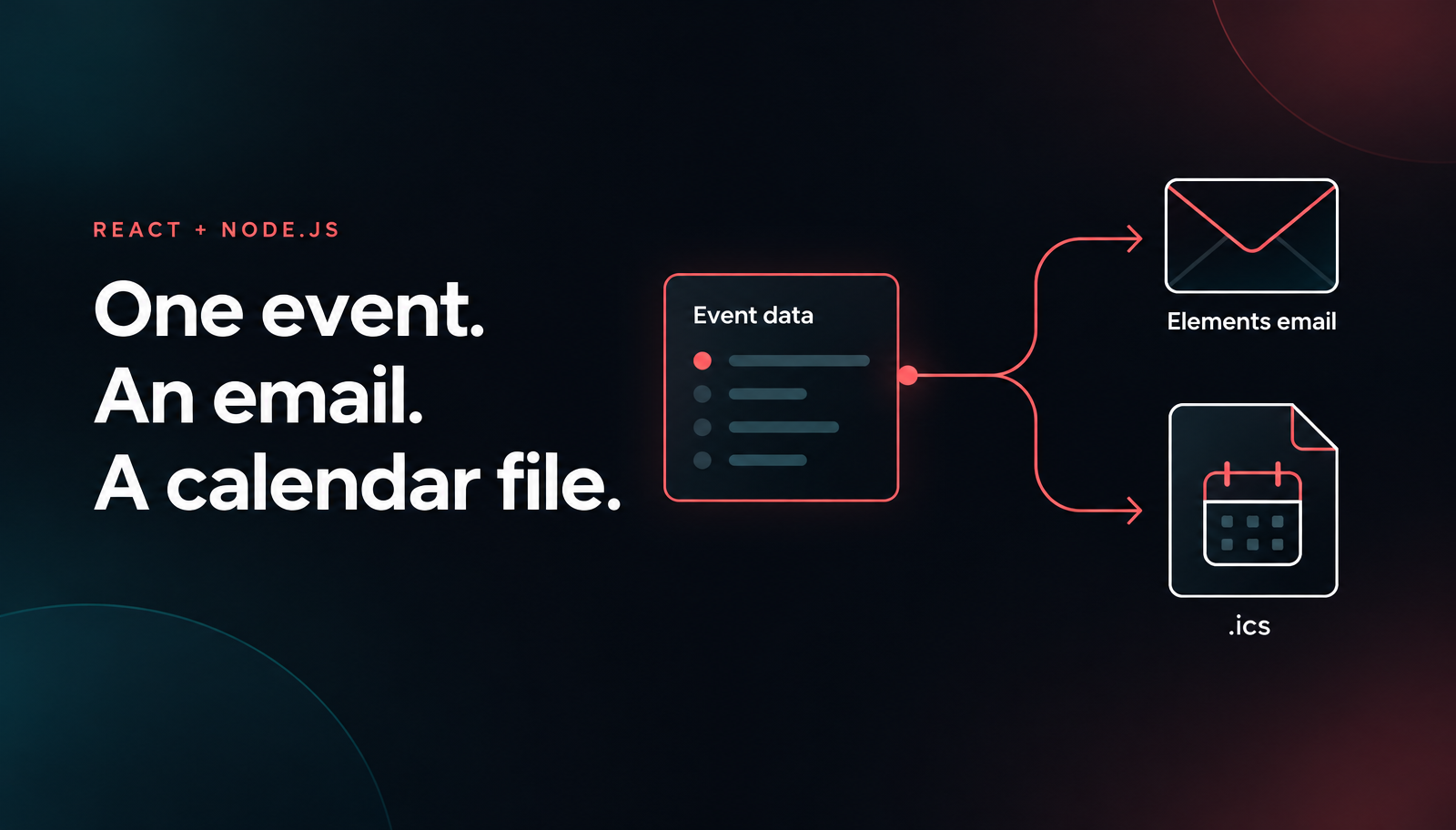
To send a Node.js email calendar invite, render the email body with Unlayer Elements, generate an iCalendar file with ics, and pass both to Nodemailer. Keep them tied to one event record so the date in the message and the date saved to the recipient’s calendar don’t drift apart.
We’ll build a confirmation for an already-booked workshop. The first version writes an HTML preview and an .ics file without contacting an email server. A separate, explicit send step adds SMTP. Here, “invite” means an add-to-calendar event using METHOD:PUBLISH, not a meeting request with an RSVP lifecycle.
Use Node.js 20 or later in a project with a package.json. Install the rendering, calendar and sending packages, plus the TypeScript runner:
npm install @unlayer/react-elements react react-dom ics nodemailer
npm install -D tsx
Elements requires React and React DOM 18 or later. Nodemailer’s current major requires Node.js 20 or later. Keep your lockfile. This is the code-first Elements library, not an embedded drag-and-drop editor.
Create confirmation.tsx. The explicit React import also supports projects using the classic JSX transform. tsx runs TypeScript files from the command line; it is not a substitute for your project’s type checking.
import React from 'react';
import { mkdir, writeFile } from 'node:fs/promises';
import { createEvent } from 'ics';
import nodemailer from 'nodemailer';
import {
  Email, Row, Column, Heading, Paragraph, Button, renderToHtmlParts,
} from '@unlayer/react-elements';

const event = {
  uid: 'reliable-webhooks-20261112@events.example.com',
  title: 'Building Reliable Webhooks',
  startsAt: new Date('2026-11-12T14:00:00Z'),
  durationMinutes: 60,
  location: 'Online workshop',
  url: 'https://events.example.com/workshops/reliable-webhooks',
};
const name = 'Morgan';
const when = new Intl.DateTimeFormat('en-GB', {
  timeZone: 'Europe/Berlin', weekday: 'long', year: 'numeric',
  month: 'long', day: 'numeric', hour: 'numeric', minute: 'numeric',
  timeZoneName: 'short',
}).format(event.startsAt);

const tree = (
  <Email backgroundColor="#edf1f5" contentWidth="600px"
    previewText="Your workshop place is confirmed."
    fontFamily={{ label: 'Arial', value: 'Arial, Helvetica, sans-serif' }}>
    <Row backgroundColor="#163b3c" padding="28px 32px"><Column>
      <Paragraph color="#b3ddd2" fontSize="14px">FIELDNOTE LABS</Paragraph>
      <Heading headingType="h1" color="#ffffff" fontSize="30px">
        You’re on the list
      </Heading>
    </Column></Row>
    <Row backgroundColor="#ffffff" padding="24px 32px"><Column>
      <Paragraph>Hi {name}, your place is confirmed for:</Paragraph>
      <Heading headingType="h2" color="#163b3c" fontSize="24px">
        {event.title}
      </Heading>
      <Paragraph>{when}</Paragraph>
      <Paragraph>Duration: {event.durationMinutes} minutes</Paragraph>
      <Paragraph>Location: {event.location}</Paragraph>
      <Button href={event.url} backgroundColor="#b8eed7" color="#163b3c">
        View event details
      </Button>
      <Paragraph fontSize="14px" color="#53686a">
        Save the calendar file to keep the time handy.
      </Paragraph>
      <Paragraph fontSize="13px" color="#53686a">
        Questions before the workshop? Reply to this email.
      </Paragraph>
    </Column></Row>
  </Email>
);
const { head, body } = renderToHtmlParts(tree);
const html = `<!DOCTYPE html><html lang="en"><head>${head}</head>${body}</html>`;
const text = [
  `Hi ${name}, your place is confirmed for ${event.title}.`,
  when, `Duration: ${event.durationMinutes} minutes`,
  `Location: ${event.location}`, `Event details: ${event.url}`,
  'Save the calendar file to keep the time handy.',
  'Questions before the workshop? Reply to this email.',
].join('\n\n');
const { error, value: calendar } = createEvent({
  uid: event.uid, title: event.title,
  start: event.startsAt.getTime(),
  startInputType: 'utc', startOutputType: 'utc',
  duration: { minutes: event.durationMinutes },
  location: event.location, url: event.url,
  description: 'Your workshop place is confirmed. See the event page for details.',
  status: 'CONFIRMED', method: 'PUBLISH',
});
if (error || !calendar) throw new Error('Calendar generation failed');

async function main() {
  await mkdir('out', { recursive: true });
  await writeFile('out/confirmation.html', html, 'utf8');
  await writeFile('out/confirmation.txt', text, 'utf8');
  await writeFile('out/workshop.ics', calendar!, 'utf8');
  console.log('Preview files written to out/');
}
main().catch(error => {
  console.error(error);
  process.exitCode = 1;
});
Run the preview-only version:
npx tsx confirmation.tsxOpen out/confirmation.html in a browser. Open out/workshop.ics with a calendar application and review the title, start time, duration and event URL before saving it. The text file gives you a readable alternative to the HTML email. No SMTP credentials are needed for this step.
The live confirmation preview shows the message layout in Elements Playground. It demonstrates the email content, not calendar-file generation or SMTP submission.

The confirmation keeps the workshop time, duration and location together above the event-details button.
Elements handles presentation. Its renderToHtmlParts API returns head and body; the example composes them into an HTML document exactly as documented. The layout follows Email → Row → Column → content. The plain-text body is authored explicitly from the same event values.
The ics API creates the calendar string separately. Without a callback, createEvent returns { error, value }. Don’t manually concatenate calendar lines around untrusted titles or descriptions. Let the calendar library handle the file format, then handle a generation error before attempting delivery.
A stable uid identifies the event. Replace the example domain with a namespace you control, and store that identifier with your event record. Don’t generate a new identifier for every recipient or every retry. A UID identifies calendar content; it is not an email deduplication key or a guarantee that every calendar application merges repeated imports.
The event begins at an explicit UTC instant. The calendar uses that instant; the email displays it in the chosen Europe/Berlin zone through Intl.DateTimeFormat. The formatter chooses the offset for the event date, not for the day the email happens to be sent.
Avoid a bare date-time such as 2026-11-12T14:00:00 when you mean UTC. Likewise, don’t take a displayed local hour and label it UTC. If your booking system accepts local times, resolve them with the event’s time zone before preparing this record, including a policy for ambiguous or nonexistent times around daylight-saving changes.
For recipient-specific display, choose a validated, saved time zone instead of consulting the worker machine’s locale. The calendar application can show the UTC event in its own local zone. Different displayed hours can represent the same instant.
Nodemailer’s calendar option accepts the generated string through icalEvent.content. Its method must match the calendar’s own METHOD. We use PUBLISH in both places because this workflow shares an event without requesting a response.
Add the following function above main(), then add if (process.argv.includes('--send')) await send(); at the end of main(), after the preview-file writes:
function required(key: string) {
  const value = process.env[key];
  if (!value) throw new Error(`Missing ${key}`);
  return value;
}
async function send() {
  const transporter = nodemailer.createTransport({
    host: required('SMTP_HOST'), port: 587,
    secure: false, requireTLS: true,
    auth: { user: required('SMTP_USER'), pass: required('SMTP_PASS') },
    disableFileAccess: true, disableUrlAccess: true,
  });
  const info = await transporter.sendMail({
    from: required('MAIL_FROM'), to: required('MAIL_TO'),
    subject: `Your place is confirmed: ${event.title}`,
    html, text,
    icalEvent: { filename: 'workshop.ics', method: 'PUBLISH', content: calendar! },
  });
  if (info.rejected.length || !info.accepted.length) {
    throw new Error('Recipient acceptance needs review');
  }
  console.log('SMTP accepted the message:', info.messageId);
}
Set SMTP_HOST, SMTP_USER and SMTP_PASS using your SMTP provider’s credentials. Set MAIL_FROM to a sender the provider allows and MAIL_TO to one mailbox you control. Supply these as server environment variables, not checked-in source. Use a monitored reply address because the footer invites replies.
This configuration requires port 587 with STARTTLS. If your provider requires port 465, use its documented settings with secure: true instead. Don’t disable certificate checking to get past a connection error. Nodemailer’s SMTP reference explains both modes.
After replacing the event URL and branding, and reviewing the preview files, opt into submission:
npx tsx confirmation.tsx --sendRunning the command again attempts another email. SMTP acceptance is not proof of inbox delivery, and an exception after submission can leave the outcome uncertain. Keep this manual first version separate from a retrying booking webhook.
Prepare the message only after your application confirms the booking and selects its authorized recipient. Don’t expose this script as a public endpoint accepting arbitrary recipients or calendar URLs. Validate external event data before rendering, including valid dates, a positive bounded duration, required names and allowed HTTPS destinations. Keep sensitive join credentials behind an authenticated event page.
Before automating, persist an event revision and the prepared message payload. Use an application-level notification key for the booking and confirmation type, coordinate workers, and record submission state. Reconcile ambiguous SMTP outcomes before retrying; neither the calendar UID nor Nodemailer supplies exactly-once delivery.
Keep the MIME structure simple. Nodemailer recommends text, HTML and a single icalEvent rather than unrelated attachments. Review the received message and calendar import in the clients your attendees use. A browser preview cannot establish Gmail, Outlook or Apple Calendar behavior.
Our editable appointment-reminder tutorial covers a different need: letting customers edit reminder content in the visual builder. This implementation stays code-first. If reminders are next, use the event-reminder guide for content ideas without treating it as a scheduler.
That is not the contract here. PUBLISH shares an event without requesting a response. A meeting-request workflow uses REQUEST and needs organizer, attendee and response handling. Client presentation still varies. Don’t change the method alone and call the result a complete RSVP system.
No. Elements renders the email content. The ics package generates calendar data, and Nodemailer builds and submits the message. Booking eligibility, recipients and delivery state remain application responsibilities.
Not with this first version. Updates and cancellations need a deliberate calendar lifecycle, stable identity, revision handling and appropriate method/status changes. Keep those separate from sending the initial confirmation.
Open the live Elements confirmation demo, follow the official Elements rendering API, and start with Unlayer Elements for the code-first content layer. Keep the calendar file and sending workflow alongside that content layer, not hidden inside it.
Insights on email design, content creation, and developer productivity.
Build localized React order-confirmation emails with Unlayer Elements. Use English and German catalogs, format EUR amounts, preview the layout and send with Resend.
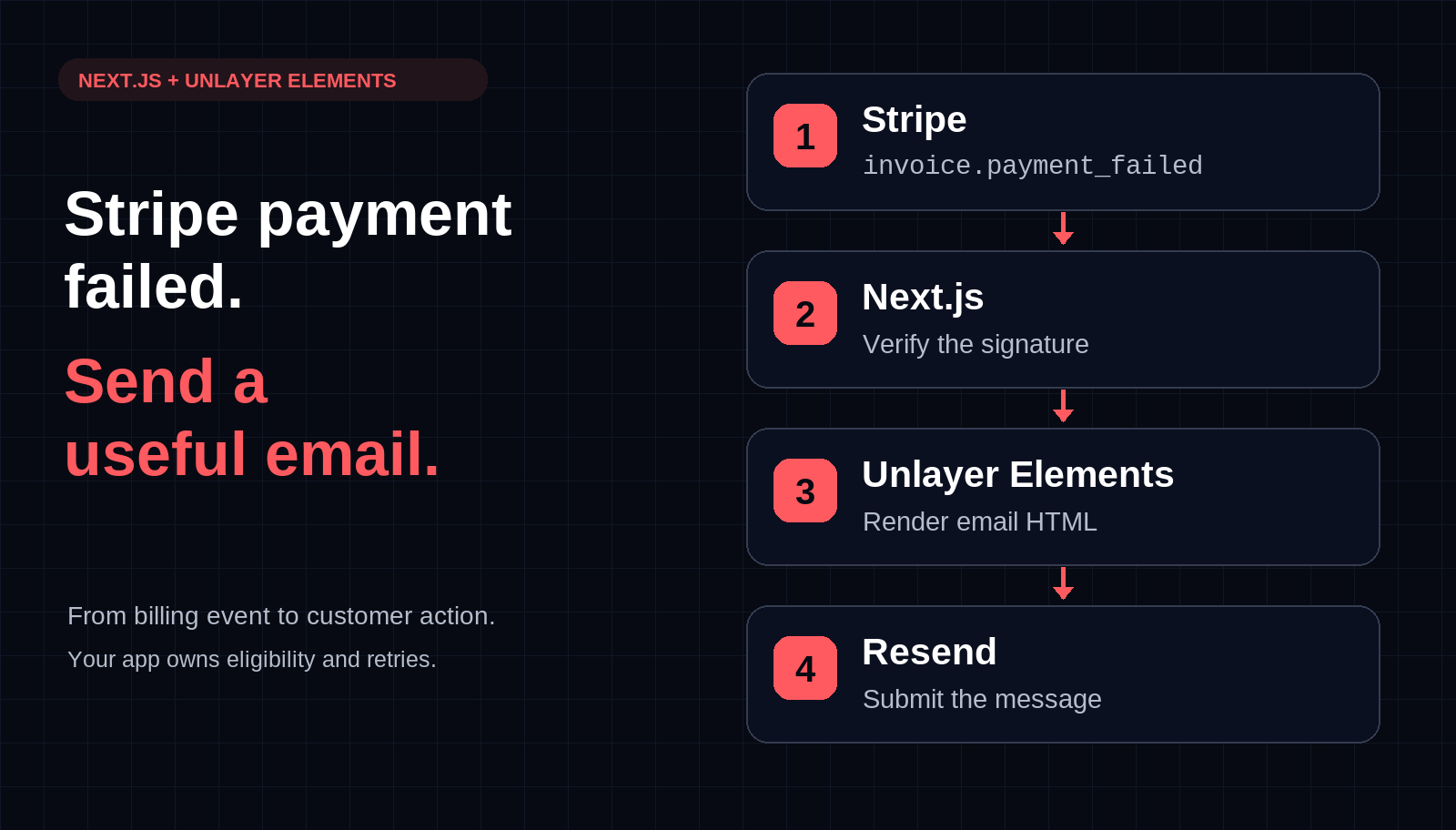
Build a Stripe payment-failed email webhook in Next.js with Unlayer Elements and Resend. Preview the message, verify signatures, and plan bounded retries.

Repeat an email block for each item with merge-tag loops in Unlayer. Build dynamic property listing emails, save editable templates, and export HTML from lists.