
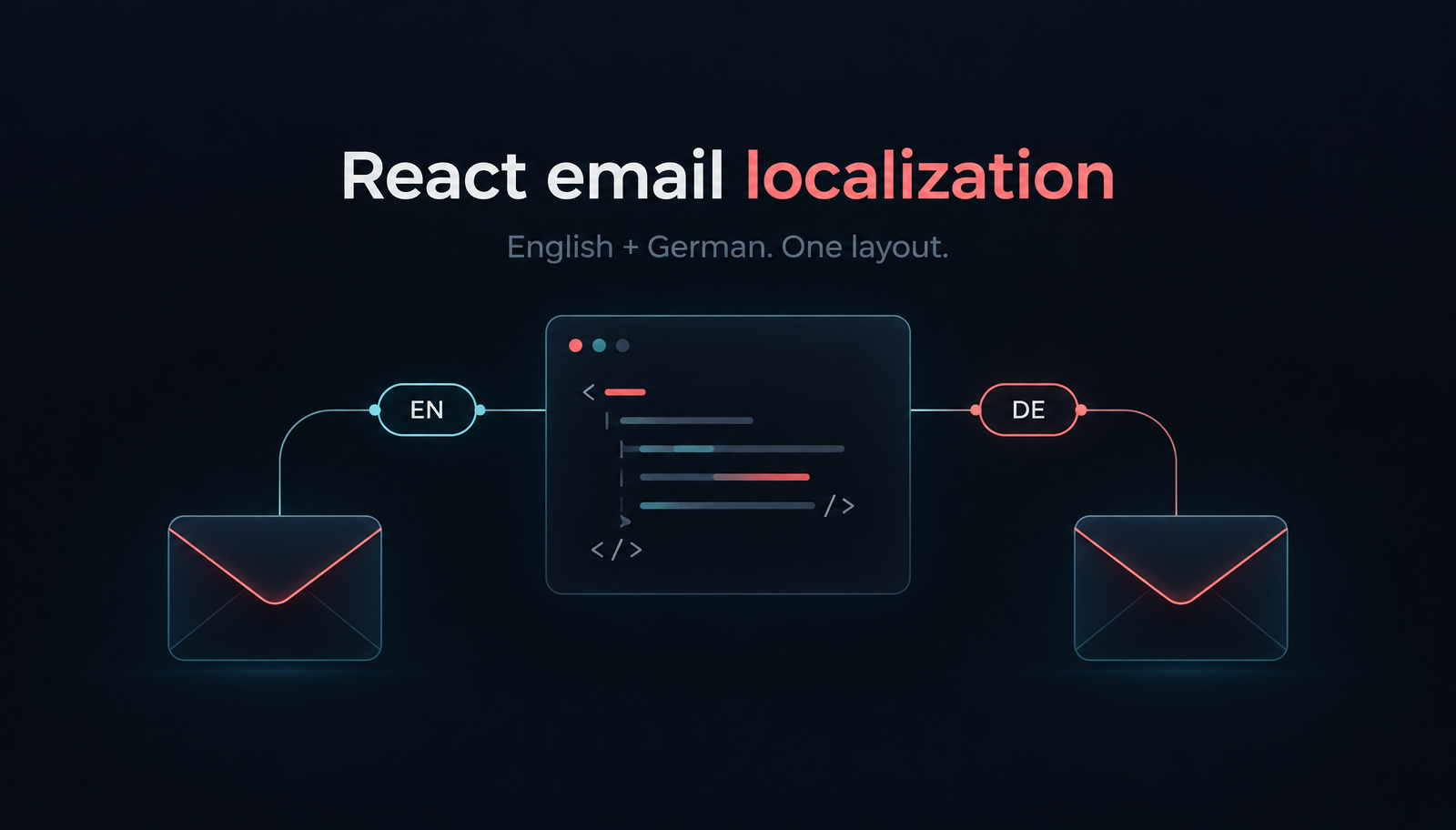
React Email Localization: Order Confirmations in English and German
Build localized React order-confirmation emails with Unlayer Elements. Use English and German catalogs, format EUR amounts, preview the layout and send with Resend.


To let customers design appointment reminders without hard-coding each recipient’s details, embed Unlayer’s Email Builder, expose a small set of merge tags, and save the editable design JSON separately from personalized HTML. This tutorial builds that authoring workflow in one HTML page: edit a reminder, save it locally, reload it, and export either a reusable template or a fictional recipient’s version.
The outcome is a template editor, not a scheduling or sending service. Your application still owns booking records and delivery. We use the visual builder because customers need to change the layout; Unlayer Elements is the code-first alternative for developer-authored designs.
Start with an Unlayer project and a development page served by your existing web app over HTTP or HTTPS. Find your project ID under Project > Settings in the Developer Console. Replace 1234 below. Follow the installation guide for deployment domains and container sizing; there is no package installation or backend dependency in this example.
Create reminder-editor.html. The page deliberately uses fictional data and browser-local storage. Do not put real appointment information into this demo.
<!doctype html>
<html lang="en">
<head>
  <meta charset="utf-8">
  <title>Appointment reminder editor</title>
  <style>
    body { margin: 20px; font-family: system-ui, sans-serif; }
    #editor { min-width: 1024px; height: 700px; }
    button { margin: 0 8px 12px 0; }
    textarea { width: 100%; height: 180px; }
  </style>
</head>
<body>
  <h1>Appointment reminder template</h1>
  <button id="save" disabled>Save template</button>
  <button id="reload" disabled>Reload saved template</button>
  <button id="alex" disabled>Export Alex example</button>
  <button id="missing" disabled>Export missing-name example</button>
  <p id="status" role="status">Loading editor...</p>
  <div id="editor"></div>
  <label for="output">Exported HTML source</label>
  <textarea id="output" readonly></textarea>
  <script src="https://editor.unlayer.com/embed.js"></script>
  <script>
    const byId = id => document.getElementById(id);
    const controls = ['save', 'reload', 'alex', 'missing'];
    const key = 'demo:appointment-reminder:v1';
    const alex = {
      first_name: 'Alex',
      service_name: 'Design consultation',
      starts_at: '8 October 2026, 10:00 AM Europe/London',
      location: 'Studio 2'
    };
    const missing = { ...alex, first_name: '' };
    const message = text => { byId('status').textContent = text; };
    function busy(value) {
      controls.forEach(id => { byId(id).disabled = value; });
    }

    unlayer.init({
      id: 'editor', projectId: 1234, displayMode: 'email',
      version: 'stable',
      features: { smartMergeTags: false },
      mergeTags: {
        first_name: {
          name: 'First name', value: '{{first_name}}', sample: alex.first_name
        },
        service_name: {
          name: 'Service', value: '{{service_name}}', sample: alex.service_name
        },
        starts_at: {
          name: 'Appointment time', value: '{{starts_at}}', sample: alex.starts_at
        },
        location: {
          name: 'Location', value: '{{location}}', sample: alex.location
        }
      }
    });
    unlayer.addEventListener('editor:ready', () => {
      busy(false);
      message('Ready. Create a reminder or reload your saved template.');
    });
    unlayer.addEventListener('design:loaded', () => {
      busy(false);
      message('Saved design loaded.');
    });

    function exportReminder(values) {
      busy(true);
      message('Exporting...');
      const options = values ? {
        mergeTags: { ...values, first_name: values.first_name || 'there' }
      } : {};
      try {
        unlayer.exportHtml(data => {
          try {
            byId('output').value = data.html;
            if (!values) {
              localStorage.setItem(key, JSON.stringify(data.design));
            }
            message(values ? 'Example HTML exported; template not saved.'
              : 'Template saved in this browser; reusable HTML shown below.');
          } catch (error) {
            message('Export returned, but saving failed: ' + error.message);
          } finally { busy(false); }
        }, options);
      } catch (error) {
        busy(false);
        message('Export failed: ' + error.message);
      }
    }
    byId('save').addEventListener('click', () => exportReminder());
    byId('alex').addEventListener('click', () => exportReminder(alex));
    byId('missing').addEventListener('click', () => exportReminder(missing));
    byId('reload').addEventListener('click', () => {
      try {
        const raw = localStorage.getItem(key);
        if (!raw) { message('No saved template in this browser.'); return; }
        const design = JSON.parse(raw);
        busy(true);
        message('Loading saved design...');
        unlayer.loadDesign(design);
      } catch (error) {
        busy(false);
        message('Could not reload: ' + error.message);
      }
    });
  </script>
</body>
</html>
The Unlayer calls follow the merge-tag reference, export API, save/load guide, and editor events. Export controls wait for editor:ready; reloading waits for design:loaded before enabling them again.
The surrounding browser code uses standard click listeners, JSON serialization, and localStorage. HTML is assigned to the textarea’s value, not inserted into the host page as markup.
Open the page through your app’s development server. In the blank Unlayer canvas, add a heading and a text block. Use “Your appointment reminder” as the heading. Enter this copy in the text block, inserting each variable through the text toolbar’s Merge Tags picker:
Hi {{first_name}},

Your {{service_name}} is scheduled for {{starts_at}}.

Location: {{location}}.

Need to make a change? Reply to this email.
Keep the first layout to one column with generous spacing. The reply instruction assumes your eventual sending integration uses a monitored reply address; change the wording if that is not your workflow. No rescheduling endpoint or calendar link is implied.
Use the builder’s preview to see the configured sample values. Then choose Save template. The lower field contains reusable HTML, while the editable JSON is stored locally. Change some copy, then choose Reload saved template to return to the saved version. Reload discards unsaved edits, so save first when those edits matter.
Finally, choose Export Alex example, then Export missing-name example. The intended difference is the greeting: Alex’s version uses “Hi Alex,” and the missing-name version uses “Hi there,” while retaining the same service, time and location. Inspect the corresponding source in the lower field. Exporting an example does not save the current design; choose Save separately after editing.
The illustration below shows the intended content hierarchy, not the editor interface.

a reminder pairs a greeting with the service, explicit appointment time and timezone, location, and reply instruction.
A merge-tag definition has distinct jobs. name labels the picker, value is the placeholder written into the template, and sample supplies preview content. According to Unlayer’s merge-tag documentation, samples help authors visualize personalization; they are not a recipient lookup.
The two export paths make that distinction visible. Saving calls exportHtml without replacement values, preserving a reusable HTML template. Example export passes the documented mergeTags option to replace the four fields in HTML. Normally, your sending application can instead process unresolved placeholders through its own templating engine.
Do not save Alex’s personalized HTML as the master reminder. Store the reusable design separately from recipient-specific output, and use JSON—not exported HTML—with loadDesign. The save/load reference defines JSON as the editable design representation.
Treat field names as an application contract. Renaming starts_at to appointment_time in your data does not migrate saved templates. Keep old fields available during a deliberate migration rather than silently turning reminders into incomplete messages.
This demo applies one explicit business rule: an empty first name becomes “there.” That fallback comes from our JavaScript expression, not from the tag’s preview sample. A whitespace-only name would require normalization before that expression; decide that policy in your application.
Do not apply the same fallback to every field. For this reminder, a missing service, appointment time or location should stop preparation until the booking record is corrected. “Your consultation is scheduled for sometime” is not a useful notification. Likewise, a cancelled booking should not enter the reminder workflow at all.
Keep time formatting outside the editor. This example supplies a complete, fixed display string including Europe/London; it performs no timezone conversion. In production, derive the display value from the booking’s stored instant and intended timezone, and recheck it when appointments move. Never let an author accidentally turn a fixture date into permanent reminder copy.
Start with plain display values, as this demo does. Do not assume merge-tag replacement sanitizes arbitrary HTML, URLs, CSS or scripts. When extending the workflow, define escaping and validation for each output context in your chosen rendering system. Keep link fields separate from text fields, and source destinations from trusted application configuration rather than free-form recipient input.
Replace browser-local persistence with an authenticated template API. As MDN documents, localStorage belongs to the page’s origin, persists across browser sessions, and can be blocked. It is a convenient demo store, not tenant isolation or shared storage. Use fictional content here; do not save customer data in this demonstration key.
Your production API should authorize the tenant and template on every save and load. Keep revisions so two editors cannot silently overwrite each other, and distinguish the version being edited from the version approved for use. Those are application responsibilities, not guarantees supplied by the Save button.
Keep subject, recipient, sender, reply address and delivery state outside this HTML-only example. If you add automatic reminders, your backend must choose eligible bookings, prevent duplicate jobs, handle cancellations and rescheduling, and record provider responses. None of those operations is performed by exportHtml.
For deployment, follow Unlayer’s project and allowed-domain setup. The version guide supports stable, latest, or a specific version. This example chooses stable; pin a reviewed version when your release process needs a fixed one.
This uses the embedded visual builder, not an Elements package. Unlayer’s pricing page lists Smart Merge Tags separately from basic personalization; this example disables smart tags and does not rely on that enhanced UI. Check your project’s selected plan before adding premium features rather than assuming a free code library grants visual-builder entitlements.
The Merge Tags picker is missing. Check that mergeTags reaches unlayer.init. The reference says the toolbar button does not appear when no tags are provided. This example uses its documented keyed-object configuration.
The source still contains placeholders. That is expected after Save template. Select an example-export button for replacement values. If those remain unresolved, compare the exact placeholder names against the configured keys and the export object; do not fix a spelling mismatch by hard-coding Alex into the design.
Reload brings back an older design. Example export does not save. Save deliberately before navigating away. If saving reports an error, keep the editor open and resolve storage restrictions; the status must not be treated as a successful save.
The layout breaks with longer content. Try a long service name and location in a separate fictional fixture. Review narrow and wide previews and your eventual email-client output. A browser preview is useful for authoring, not proof of identical inbox rendering.
For broader context, read our dynamic email template guide and CRM integration guide. For the next implementation step, use the Unlayer save/load documentation to connect this editing experience to your application’s authorized template store.
Not in this workflow. The export API returns design JSON and HTML. Scheduling and sending belong to your application and delivery provider.
Do not use it as that default. The merge-tag reference defines samples for preview. Prepare fallback values explicitly, as the missing-name export does here.
Yes: save the returned design JSON and pass it to loadDesign, as documented in Load and Save Designs. Reinitialize the merge-tag definitions too; the template and your available field catalog are separate pieces of the integration.
Insights on email design, content creation, and developer productivity.
Build localized React order-confirmation emails with Unlayer Elements. Use English and German catalogs, format EUR amounts, preview the layout and send with Resend.
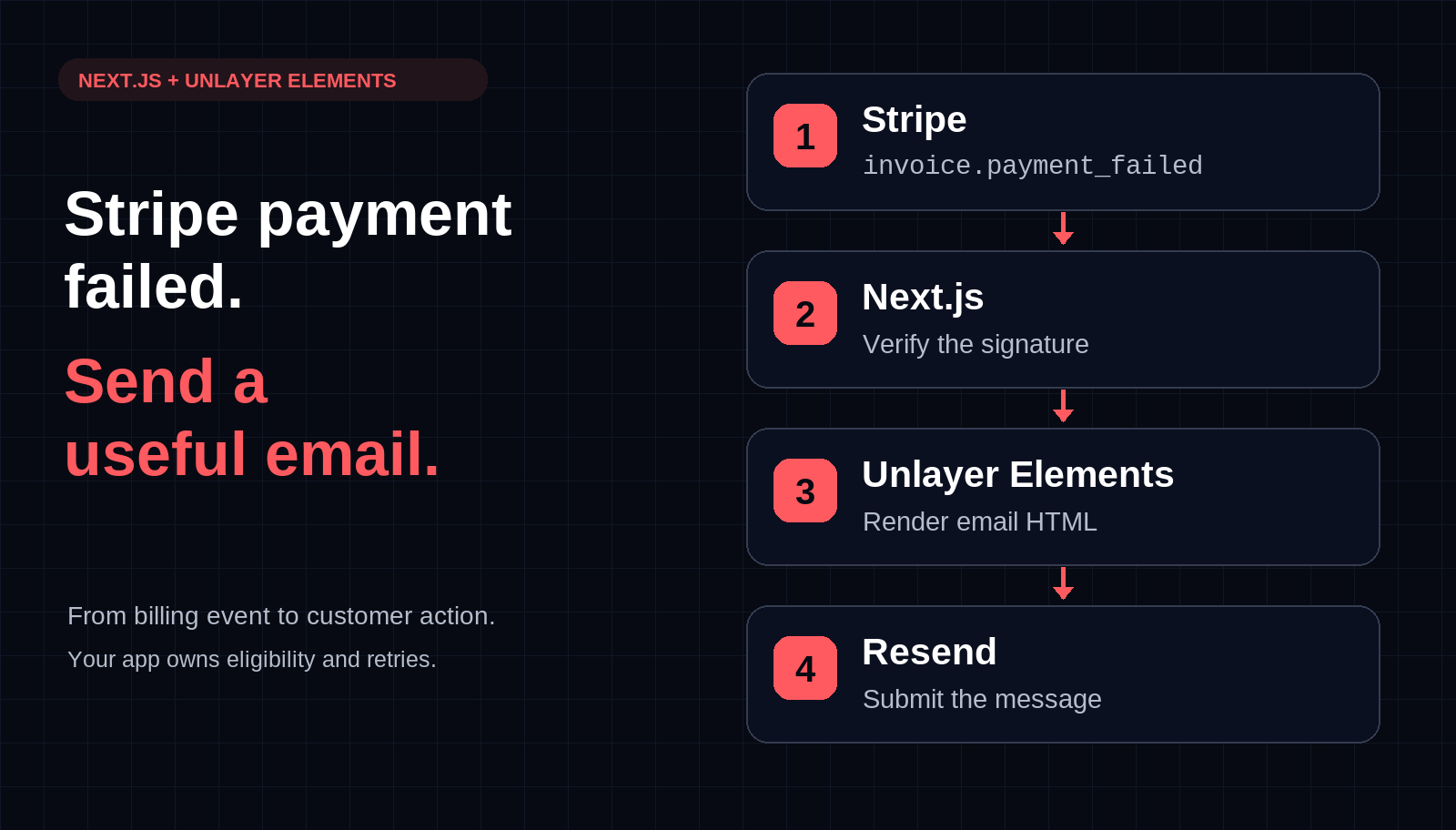
Build a Stripe payment-failed email webhook in Next.js with Unlayer Elements and Resend. Preview the message, verify signatures, and plan bounded retries.
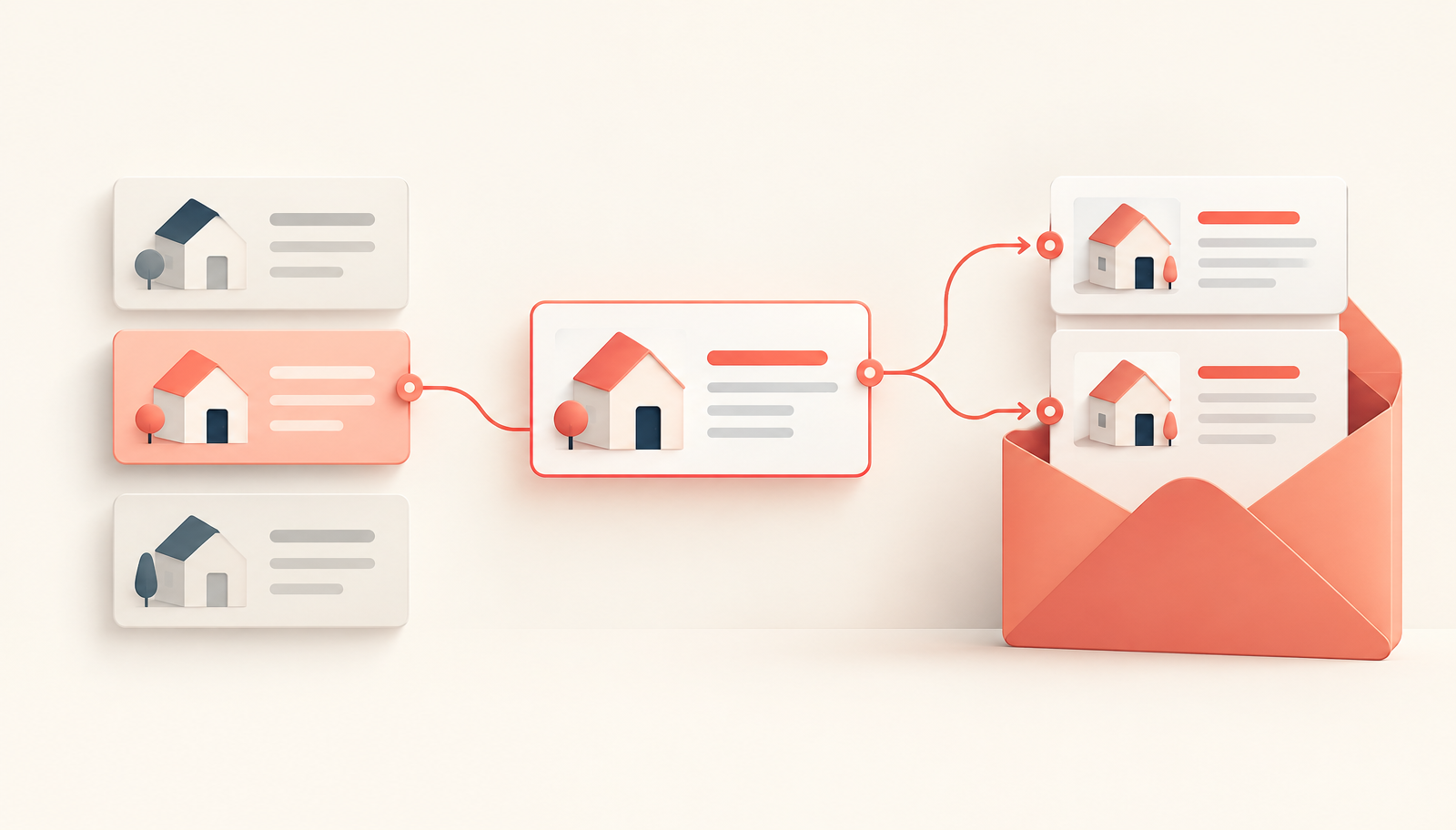
Repeat an email block for each item with merge-tag loops in Unlayer. Build dynamic property listing emails, save editable templates, and export HTML from lists.