
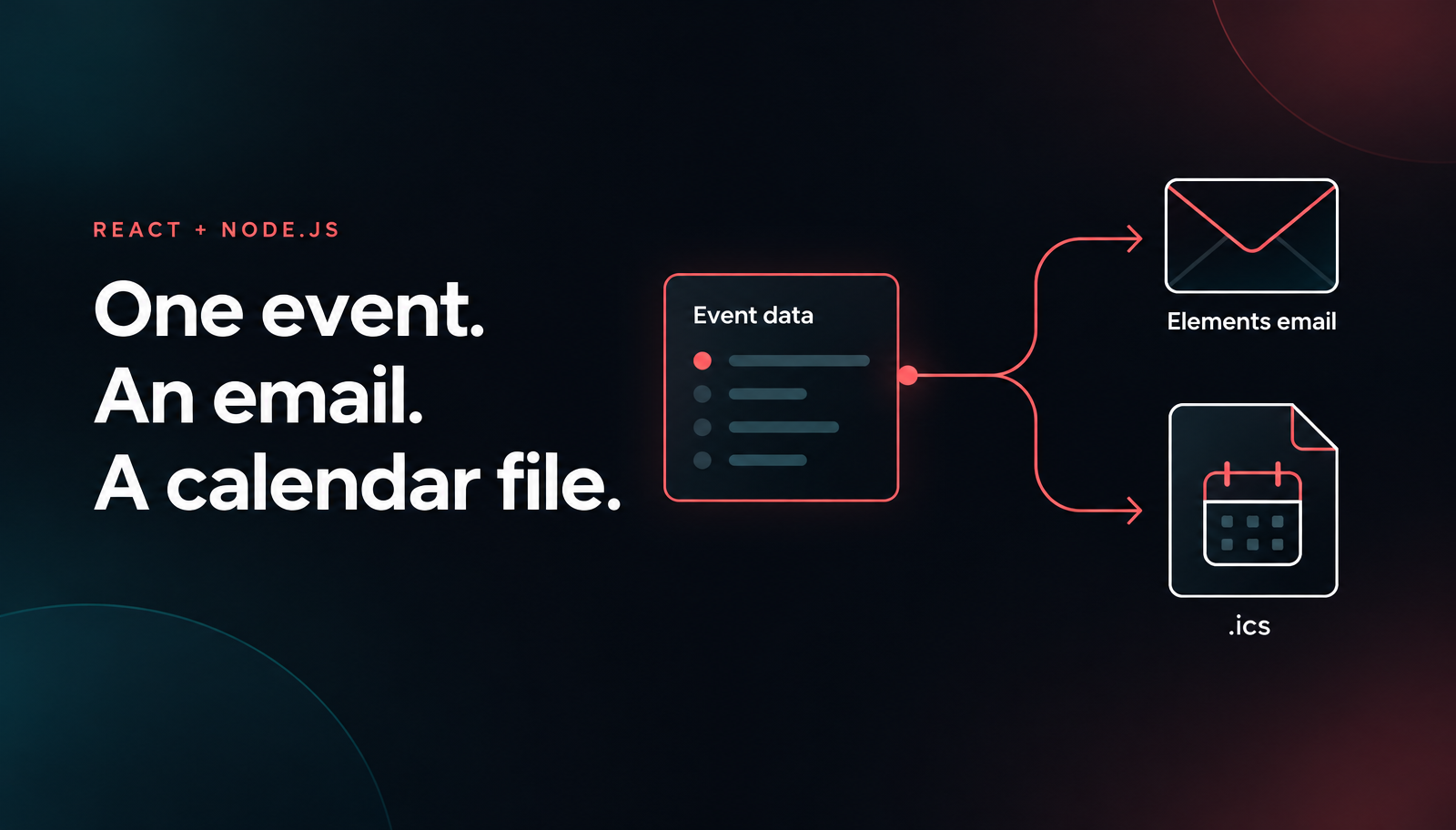
Node.js Email Calendar Invite with React and Nodemailer
Build a Node.js email calendar invite with React, Unlayer Elements, ics and Nodemailer. Preview the confirmation and ICS file, then opt into SMTP sending.

To repeat an email block for each item in a list, configure a merge-tag loop, attach its repeat rule to one block, and pass the list of values when exporting HTML. In Unlayer, customers edit that block once; your application supplies the data for each repetition. This tutorial applies the technique to real estate listing emails, with one text-first card per property and editable design JSON saved separately from the campaign’s HTML.
This tutorial creates a small authoring page, not a CRM or sending service. Start with text-first cards: they remain useful when a property has no photo. You’ll create one listing block, export two fictional homes, save and reload the editable template, and stop export when no available homes remain.
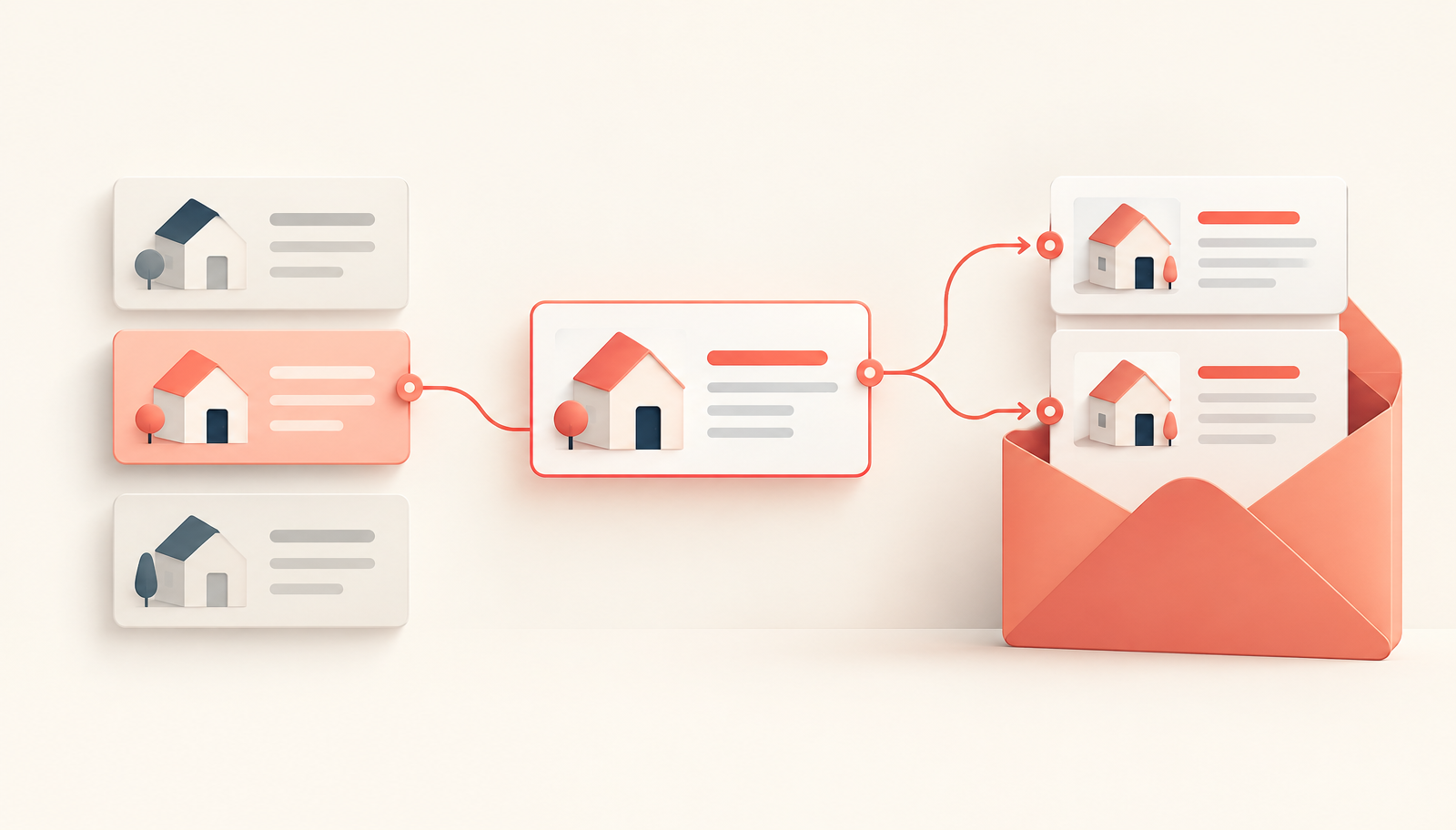
One reusable listing layout turns changing property data into repeated email cards.
Create an Unlayer project, get its ID from Project > Settings, and serve the following page through your existing application’s development server. Replace 1234 with that project ID. The installation guide documents the script, email mode and recommended editor dimensions. There is no package installation or property-feed connection in this first version.
Save this as listing-editor.html. Use only fictional data in this demo. The example origin is a placeholder, not a working property website.
<!doctype html>
<html lang="en">
<head>
  <meta charset="utf-8">
  <title>Property listing editor</title>
  <style>
    body { margin: 20px; font-family: Arial, sans-serif; }
    #editor { min-width: 1024px; height: 700px; }
    button { margin: 0 8px 12px 0; }
    textarea { width: 100%; height: 180px; }
  </style>
</head>
<body>
  <button id="save" disabled>Save reusable template</button>
  <button id="load" disabled>Reload saved template</button>
  <button id="export" disabled>Export available homes</button>
  <button id="empty" disabled>Try empty inventory</button>
  <p id="status" role="status">Loading editor...</p>
  <div id="editor"></div>
  <label for="output">Exported HTML source</label>
  <textarea id="output" readonly></textarea>
  <script src="https://editor.unlayer.com/embed.js"></script>
  <script>
    const $ = id => document.getElementById(id);
    const controls = ['save', 'load', 'export', 'empty'];
    const storageKey = 'demo:property-listings:v1';
    const propertyOrigin = 'https://properties.example.com';
    const listings = [
      { address: '14 Example Lane', price: 'GBP 425,000',
        details: '2 bedrooms · Viewing by appointment',
        url: propertyOrigin + '/homes/example-lane', available: true },
      { address: 'Flat 8, 22 Demonstration Road, Riverside Quarter',
        price: 'GBP 310,000', details: '1 bedroom · Step-free entrance',
        url: propertyOrigin + '/homes/demonstration-road', available: true }
    ];
    const message = text => { $('status').textContent = text; };
    const busy = value => controls.forEach(id => { $(id).disabled = value; });

    function displayText(value) {
      if (typeof value !== 'string' || !value.trim()
          || value.length > 160 || /[<>&"'{}]/.test(value)) {
        throw Error('Expected bounded plain display text without HTML or tags');
      }
      return value.trim();
    }
    function prepare(source) {
      const available = source.filter(item => item.available === true);
      if (available.length > 6) throw Error('Choose at most six homes');
      return available.map(item => {
        const link = new URL(item.url);
        if (link.protocol !== 'https:' || link.origin !== propertyOrigin
            || link.username || link.password || link.search || link.hash) {
          throw Error('Expected a property URL on the configured HTTPS origin');
        }
        return { address: displayText(item.address), price: displayText(item.price),
          details: displayText(item.details), url: link.href };
      });
    }

    unlayer.init({
      id: 'editor', projectId: 1234, displayMode: 'email', version: 'stable',
      features: { smartMergeTags: false },
      mergeTags: {
        properties: {
          name: 'Properties',
          rules: { repeat: { name: 'Repeat for Each Property',
            before: '{{#properties}}', after: '{{/properties}}' } },
          mergeTags: {
            address: { name: 'Address', value: '{{address}}' },
            price: { name: 'Display price', value: '{{price}}' },
            details: { name: 'Details', value: '{{details}}' },
            url: { name: 'Property URL', value: '{{url}}' }
          }
        }
      }
    });
    unlayer.addEventListener('editor:ready', () => {
      busy(false); message('Ready. Create your listing block.');
    });
    unlayer.addEventListener('design:loaded', () => {
      busy(false); message('Saved template loaded.');
    });

    $('save').addEventListener('click', () => {
      busy(true);
      try {
        unlayer.exportHtml(data => {
          try {
            localStorage.setItem(storageKey, JSON.stringify(data.design));
            message('Reusable design saved in this browser.');
          } catch (error) { message('Save failed: ' + error.message); }
          finally { busy(false); }
        });
      } catch (error) { busy(false); message('Save failed: ' + error.message); }
    });
    $('load').addEventListener('click', () => {
      try {
        const saved = localStorage.getItem(storageKey);
        if (!saved) { message('No saved design in this browser.'); return; }
        const design = JSON.parse(saved);
        busy(true);
        unlayer.loadDesign(design);
      } catch (error) { busy(false); message('Reload failed: ' + error.message); }
    });
    function exportHomes(source) {
      $('output').value = '';
      try {
        const homes = prepare(source);
        if (!homes.length) {
          message('No available homes. Nothing exported.'); return;
        }
        busy(true); message('Exporting listing email...');
        unlayer.exportHtml(data => {
          $('output').value = data.html;
          busy(false); message('Listing HTML exported; reusable design unchanged.');
        }, { mergeTags: { properties: { repeat: homes } } });
      } catch (error) { busy(false); message('Export failed: ' + error.message); }
    }
    $('export').addEventListener('click', () => exportHomes(listings));
    $('empty').addEventListener('click', () => exportHomes([]));
  </script>
</body>
</html>
The Unlayer calls follow the merge-tag looping reference, export API, save/load guide and lifecycle events. The surrounding page uses documented browser click listeners, JSON serialization, URL parsing and local storage.
Open the page in your app. Add a heading containing “Homes to explore,” followed by a separate introduction: “Here are this week’s available listings.” Then add one Text block for the property card. Keep the heading and introduction outside the repeating block so they appear once.
Unlayer’s loop documentation says configuring rules adds a merge-tag group and rule icon to blocks. Open that icon on the property Text block, select Properties as the group, and choose Repeat for Each Property as the rule. Try the same selection flow in the live merge-tag loops demo, which starts with a Products group and a Repeat for Each Product rule. The names come from your configuration; this tutorial changes them to property listings.

Choose Properties and Repeat for Each Property in the block’s merge-tag rule picker.
After selecting the rule, insert these fields through the text toolbar’s Merge Tags picker inside that same block:
{{address}}
{{price}}
{{details}}
View property
Bold the address, add spacing between lines, and select “View property” to create a link whose destination is {{url}}. The merge-tag reference defines placeholders and their processing; this URL belongs to the same per-property block as the text fields. Don’t put the link in a separate, independently repeated block or you’ll separate each address from its destination.

The block’s merge-tag rule icon is the control used to choose the repeating property rule.
Add a non-repeating footer: “Reply to ask about a viewing.” That instruction assumes your eventual mail integration has a monitored reply address. Change the copy if your product works differently.
Choose Export available homes. The intended result is one heading, one introduction and two cards, each with its own address, price, details and link. The longer address can wrap without changing the data contract. The lower field shows HTML source using the textarea’s raw value property, rather than inserting exported markup into the host page.

Four fictional property listings rendered from one repeating block; the long address wraps. This screenshot uses four demonstration records; the unchanged code above supplies two.
There are three distinct pieces. properties names the merge-tag group. repeat names the rule. The array contains the values for each repetition. Unlayer documents this shape under Exporting HTML with Real Values: Loops.
The before and after strings delimit a Mustache-style section around the selected block. They are not JavaScript loops executed inside an inbox. Unlayer also documents exporting unresolved markers for a host templating engine to process later. This example instead passes the array through the documented export options; don’t confuse that object with a Mustache data model passed directly to a separate renderer.
Field names form a contract between the template and your application. If a customer replaces {{price}} with {{asking_price}}, supplying price won’t repair that change. Keep the exposed field catalog small, and plan migrations before renaming fields used by saved designs.
Choose Save reusable template, change the introduction, then choose Reload saved template. Reload replaces unsaved work with the saved design. Save intentionally before leaving if those changes matter.
The save/load API uses design JSON for editing. Personalized HTML is a separate output. Saving here exports without listing replacements and stores only data.design; exporting homes does not update that stored template. This keeps the reusable layout separate from one campaign’s inventory.
MDN’s localStorage documentation explains its origin scope, persistence and restrictions. Serve this page over HTTP or HTTPS, not a file URL. Browser storage can fail, and a local key is not shared storage, tenant isolation or an approval system.
Try empty inventory after exporting the two homes. The output field is cleared and preparation stops with “No available homes. Nothing exported.” This is an application policy, not a claim that an empty loop automatically makes a useful campaign. In production, skip that campaign or author a separate no-matches message.
The available filter and six-home limit are also application rules. Availability is fictional here; your backend must supply current authorized inventory. Reject an oversized selection rather than silently dropping homes that the author expected to include.
Photos are deliberately optional because the baseline has no image block. A listing without a photo still has an address, price and destination. If you later add photo cards, require a durable approved image URL or choose the text-first layout when photos are unavailable; don’t save expiring presigned URLs as email image sources. Our images-in-emails guide provides broader design context.
The display-text check is intentionally restrictive: it rejects markup characters and tag delimiters rather than claiming to sanitize arbitrary HTML. It also rejects apostrophes and ampersands, so it is not a universal address validator. For real addresses, implement context-appropriate escaping in your chosen rendering pipeline. Don’t remove these guards and assume merge-tag replacement makes untrusted strings safe.
Replace the placeholder property origin with trusted deployment configuration and working listing routes. The example permits only same-origin HTTPS links without credentials, query strings or fragments. That is a deliberately narrow application policy built on the URL API, not a link-safety guarantee supplied by Unlayer.
Move template storage behind authenticated, tenant-scoped APIs. Authorize every save and load, keep revisions, and choose which revision is approved for use. Recheck listing availability before preparing a campaign; a saved template must not become a permanent snapshot of sold inventory.
Keep sender, subject, recipient consent, reply address, delivery and retries in your sending application. This page exports HTML only. It does not connect a property feed, send email or promise inbox compatibility. Review your eventual output in the email clients relevant to your users.
This uses the commercial visual builder because customers edit layouts. Elements is the code-first alternative, not an entitlement to commercial editor features. The pricing page lists Smart Merge Tags separately; this example disables that enhanced UI. Confirm your project’s looping access with Unlayer before deployment. The public pricing text does not specify its plan mapping. Follow allowed-domain setup and the version guide; stable is a channel, not an immutable version pin.
No repeat-rule control: Check that the Properties group and its rules.repeat configuration reach initialization, then confirm your project’s feature access.
One card or unresolved fields: Confirm the rule is attached to the actual Text block, the field names match, and export uses properties.repeat. A basic placeholder replacement is not the same configuration as a repeated array.
Repeated headings or mismatched links: Move shared copy outside the loop. Keep address, price, details and link together inside its block.
Old HTML after an empty selection: Clear prior output before preparation, as this page does. A production job must also discard any previous payload when preparing a new campaign fails.
For more layout context, read our dynamic-template guide and real-estate newsletter examples.
Define a merge-tag group with a loop rule, select that group and rule on the block, and pass the array under the matching group and rule names in exportHtml. In this example, that is mergeTags: { properties: { repeat: homes } }. The official loop reference documents the same shape with products.
Yes. Unlayer’s live demo uses a dynamic list of products. Change the group, rule markers and item fields together to match your data. A product list and a property list use the same repeating-block technique; their field names and item values differ.
No. The demo distinguishes sample values shown in preview from final values passed through the export options. This tutorial supplies listing values through exportHtml; it does not rely on preview samples.
Yes. The builder edits the design, while the export call supplies listing values. Save the editable JSON and reload it through the design API.
No. The export API returns design JSON and HTML. Your application owns campaign eligibility and delivery.
No. The builder installation guide supports a script-based integration. Use Elements when developers, rather than customers, own the layout in code.
Start with one block in the live merge-tag loops demo, select its repeat rule, and inspect how the list becomes repeated content. Then follow the merge-tag loop docs to connect your own array, and get started with Unlayer to embed the builder in your application.
Insights on email design, content creation, and developer productivity.
Build a Node.js email calendar invite with React, Unlayer Elements, ics and Nodemailer. Preview the confirmation and ICS file, then opt into SMTP sending.

Build localized React order-confirmation emails with Unlayer Elements. Use English and German catalogs, format EUR amounts, preview the layout and send with Resend.
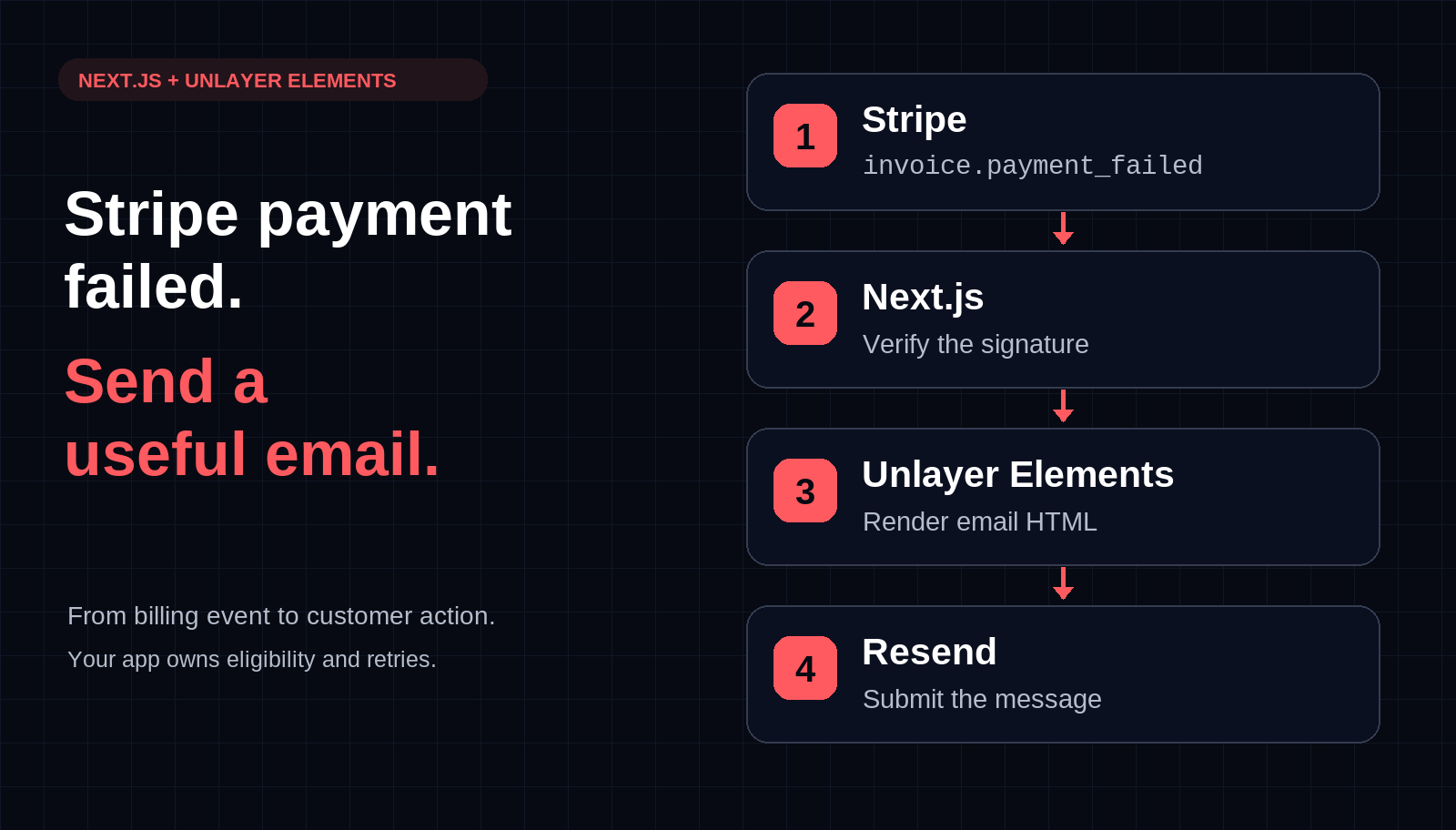
Build a Stripe payment-failed email webhook in Next.js with Unlayer Elements and Resend. Preview the message, verify signatures, and plan bounded retries.